
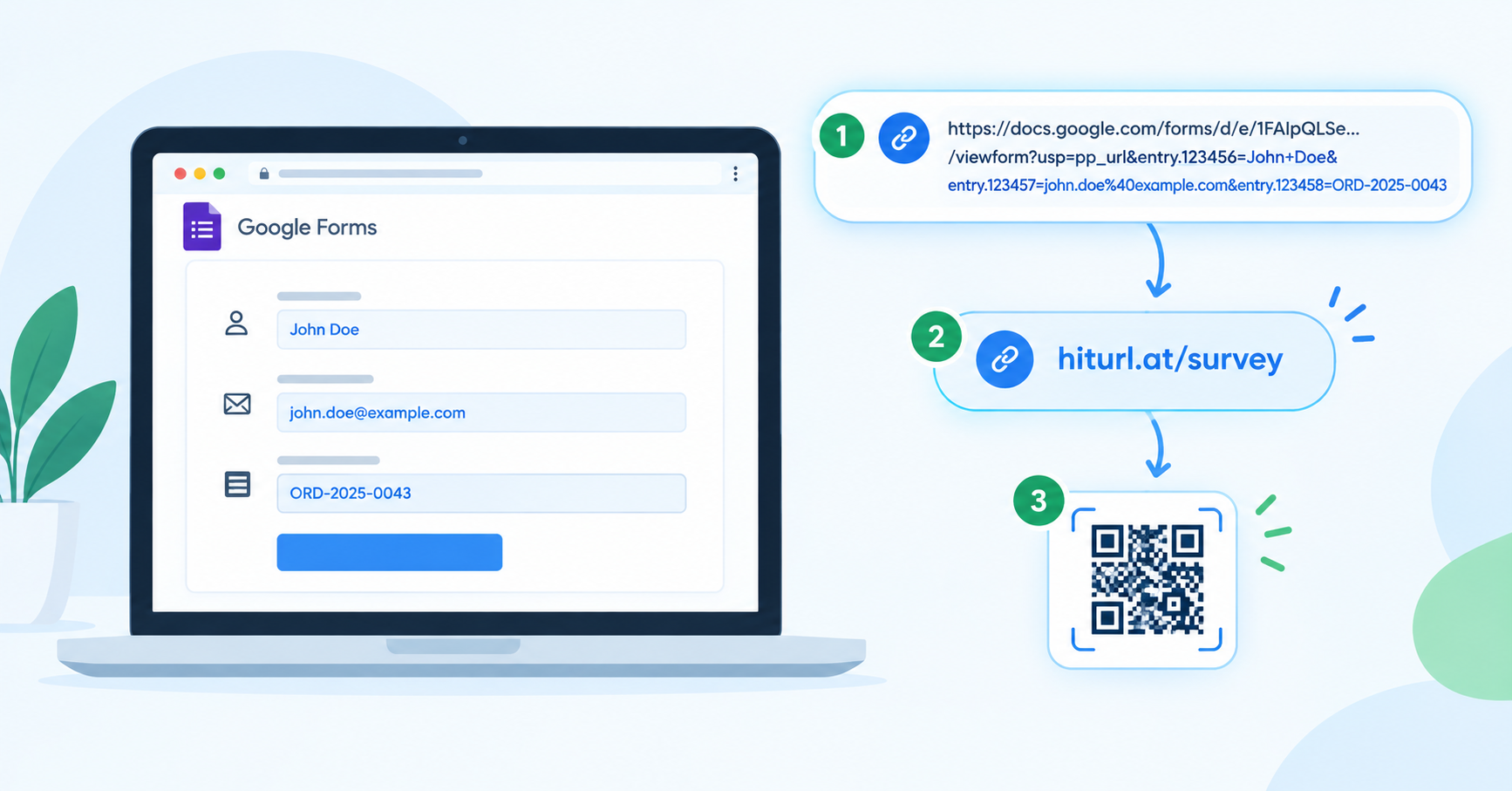
Why Operations Teams Are Obsessed With Pre-Populated Form Links
Every time someone opens a blank form and fills in data you already have, you lose time and introduce errors. If you know how to prefill Google Form via URL, you eliminate that friction entirely. You send a link, the fields populate automatically, and your respondent confirms or submits without typing a word.
This guide walks you through exactly how to build those links, how to handle the messy long URLs they produce, and how to wrap them in short, trackable links your team can actually use at scale.
What Does It Mean to Prefill a Google Form Field?
When you share a Google Form, its URL is a clean link to a blank form. But Google Forms supports a query string format that lets you pass values directly into specific fields via URL parameters. The result is a form that opens with fields already filled in.
A query string is the part of a URL that starts with a ? and carries key-value pairs separated by & symbols. For Google Forms, each field has a unique entry ID, and you map your values to those IDs in the URL.
Pre-populating Google Form fields via URL parameters means appending field entry IDs and their values directly to the form's share link. No third-party software is required. The feature is built into Google Forms itself.
Common use cases include:
- Sending order confirmation surveys with the order ID pre-filled
- Event check-in forms with attendee names loaded automatically
- Support ticket follow-up forms with the customer email already in place
- Onboarding checklists with the employee name and department pre-populated
How to Find Your Google Form Entry IDs
Google Forms does not display entry IDs in the editing interface. You have to retrieve them manually using one of two methods.
Method 1: Use the Pre-fill Link Generator
- Open your form in editing mode.
- Click the three-dot menu in the top right corner and select "Get pre-filled link".
- Type sample values into each field you want to pre-populate.
- Click "Get link" at the bottom of the form.
- Google generates a URL that contains the entry IDs mapped to your sample values.
The generated URL looks like this:
https://docs.google.com/forms/d/e/FORM_ID/viewform?usp=pp_url&entry.123456789=Sample+Name&[email protected]
The numbers after entry. are your field IDs. Google's official documentation on pre-filled links confirms this is the supported method for retrieving those IDs.
Method 2: Inspect the Form Source
- Open the live form in your browser (not the editor).
- Right-click and select "View Page Source" or press
Ctrl+U. - Search for
entry.in the source code. - You'll find entry IDs associated with each field's input element.
Method 1 is faster for most teams. Method 2 is useful when you need to confirm IDs for complex field types like dropdowns or checkboxes.
How to Build a Prefilled Google Form URL From Scratch
Once you have your entry IDs, building the URL follows a straightforward pattern. Here is the structure:
https://docs.google.com/forms/d/e/YOUR_FORM_ID/viewform?entry.FIELD_ID_1=VALUE_1&entry.FIELD_ID_2=VALUE_2
A few rules to follow:
- Spaces must be encoded as
+or%20. - Special characters like
@,#, and&must be URL-encoded (e.g.,%40for@). - Checkbox and multi-select fields require multiple entries with the same field ID:
&entry.FIELD_ID=Option+A&entry.FIELD_ID=Option+B. - Date fields use three separate sub-entries for year, month, and day.
URL encoding is the process of converting characters that are not safe to include in a URL into a percent-encoded format. For Google Form prefill links, any space, email address symbol, or special character in your values must be encoded before appending to the URL, or the form will not pre-populate correctly.
You can verify the full syntax rules in Google's support article on sending a pre-filled form.
A Real-World Example
Suppose you run an e-commerce store and want to send a post-purchase review form. You already have the customer's name, email, and order ID from your database.
Your raw prefilled link might look like this:
https://docs.google.com/forms/d/e/1FAIpQLSe_EXAMPLE/viewform?entry.111111111=Jane+Smith&entry.222222222=jane%40example.com&entry.333333333=ORD-20948
That URL is 180+ characters long. It breaks in emails. It looks suspicious in SMS messages. It is not something a customer wants to see.
The Prefill URL Problem: Long Links That Break Campaigns
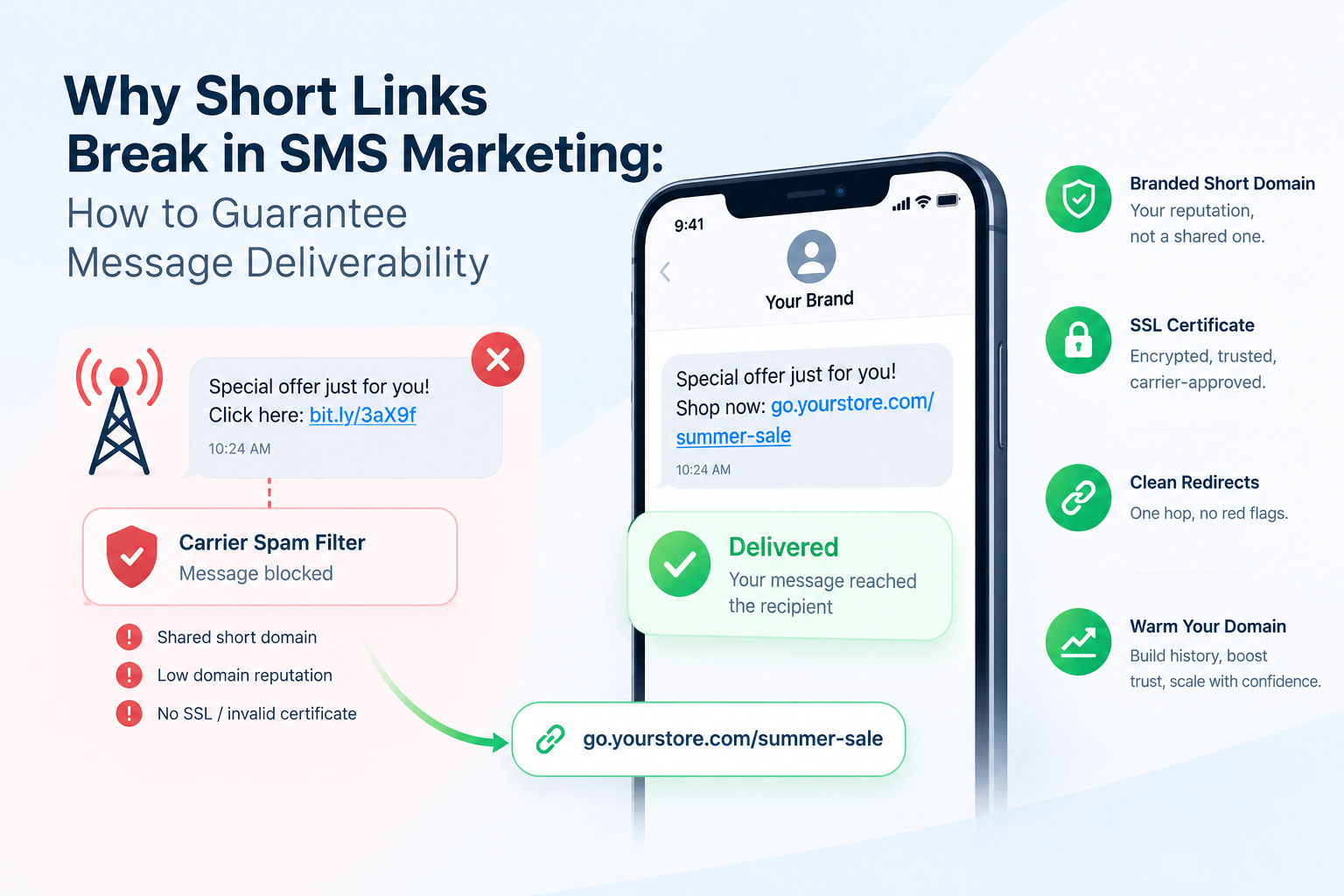
This is where most teams get stuck. The prefilled URL works perfectly in a browser test, but it falls apart in production because the link is too long and too ugly to use reliably across channels.
Email clients wrap long URLs across lines, breaking them. SMS platforms truncate them. QR code generators produce dense, unscannable barcodes when the destination URL is 200+ characters. And if you ever need to update the form ID or a field value, you have to find and replace every instance of that URL across every campaign asset.
A prefilled Google Form URL can easily exceed 300 characters once you add three or four field values. Wrapping it inside a short link does not just make it cleaner; it makes it manageable, trackable, and updateable without touching your campaign assets.
The solution is to wrap the full prefilled URL inside a short link. If you need a refresher on creating a custom alias for any link, the guide on how to shorten a URL with a custom alias walks through the full process.
How to Wrap a Prefilled Google Form Link in a Short, Trackable URL
This is where HitURL comes in. You paste your full prefilled URL as the destination, set a custom alias that matches your campaign or respondent group, and get back a short link that tracks every click.
Here is the workflow using The Prefill-Shorten-Track Method:
- Build your prefilled URL using the entry IDs from your form and the actual values from your data source (CRM, order system, spreadsheet).
- URL-encode the values to handle spaces and special characters correctly.
- Paste the full prefilled URL into HitURL as the destination link.
- Set a custom alias that makes sense for your use case (e.g.,
hiturl.at/review-janeorhiturl.at/survey-ord20948). - Share the short link in your email, SMS, or printed material.
- Track clicks in your HitURL dashboard to see who opened the form link and when.
Because the short link destination is editable, you can update the prefilled URL at any time without changing the short link itself. If your form ID changes or you rebuild the form, you update the destination once and every existing link continues to work.
See how HitURL tracks every click, fires your pixels, and generates QR codes — free at hiturl.at.
Can You Use QR Codes With Prefilled Form Links?
Yes, and this combination is particularly useful for physical environments. Event check-in stations, product packaging, conference badges, and retail displays all benefit from QR codes that open a pre-populated form.
A dynamic QR code is one where the destination URL can be changed after the code is printed. When you generate a QR code from a HitURL short link, the QR code points to the short link, not the long prefilled URL. That means you can update the form, change the prefilled values, or swap the destination entirely, and the printed QR code still works.
A static QR code encodes the destination URL permanently. If that URL is a 300-character prefilled Google Form link, the QR code becomes dense, difficult to scan, and impossible to update. Always use a dynamic QR code for prefilled form links. For a full walkthrough of this approach, see the article on using QR codes with Google Form surveys.
Generating a QR code directly from a raw prefilled Google Form URL is technically possible but practically problematic. The more data in the URL, the denser the QR code pattern becomes. Wrapping the prefilled URL in a short link first produces a clean, scannable QR code that you can update at any time.
How to Scale Prefilled Links Across Multiple Respondents
Manually building one prefilled URL is straightforward. Building hundreds is a different problem. Operations teams usually solve this with one of two approaches.
Approach 1: Spreadsheet Formula Generation
In Google Sheets or Excel, you concatenate your base URL with encoded field values pulled from columns in your data. A formula like this works for simple cases:
=CONCATENATE("https://docs.google.com/forms/d/e/YOUR_FORM_ID/viewform?entry.111111111=",SUBSTITUTE(A2," ","+"),"&entry.222222222=",B2)
Column A holds names, column B holds order IDs, and the formula builds a unique prefilled URL for each row. You then paste those URLs into HitURL in bulk or use the HitURL link shortener to create individual short links per respondent.
Approach 2: REST API Integration
For teams sending hundreds or thousands of personalized form links, HitURL's REST API lets you create short links programmatically. Your application builds the prefilled URL, sends it to the HitURL API with a custom alias or auto-generated slug, and gets back a short link to include in your email or SMS send.
This approach also makes it possible to attach UTM parameters to every short link before sending, which feeds clean campaign data into your analytics. The guide on tracking link clicks with UTM parameters explains how to set those up correctly so your attribution stays accurate across channels.
Frequently Asked Questions
Does prefilling a Google Form field lock the value so respondents can't change it?
No. Pre-populated values are suggestions, not locks. Respondents can edit or delete any prefilled value before submitting. If you need a read-only field, you would need a different form tool that supports field locking.
What happens if a prefilled URL parameter doesn't match a valid entry ID?
Google Forms ignores unrecognized parameters. The form opens normally, and any fields with unrecognized entry IDs remain blank. No error is shown to the respondent.
Can you prefill dropdown and multiple-choice fields via URL?
Yes. Use the exact option label as it appears in the form, URL-encoded if it contains spaces or special characters. For checkboxes with multiple selections, repeat the same entry ID with different values: &entry.FIELD_ID=Option+A&entry.FIELD_ID=Option+B.
Is there a limit to how many fields you can prefill?
Google does not publish a hard limit on the number of prefilled parameters. In practice, very long URLs (over 2000 characters) can cause issues in some browsers and email clients. Wrapping your prefilled URL in a short link eliminates this concern.
Can I track who clicked my prefilled form link?
A raw Google Form URL provides no click data. When you wrap it in a short link using HitURL, you get a click dashboard showing timestamps, device types, geographic data, and referrer information for every click on that link.
Put Your Prefilled Form Links to Work
Building a prefilled Google Form URL takes ten minutes once you have your entry IDs. The real operational value comes from wrapping those URLs in short, branded, trackable links that you can deploy across email, SMS, QR codes, and print without worrying about broken links or missing analytics.
See how HitURL tracks every click, fires your pixels, and generates QR codes — free at hiturl.at. No credit card needed to get started.