

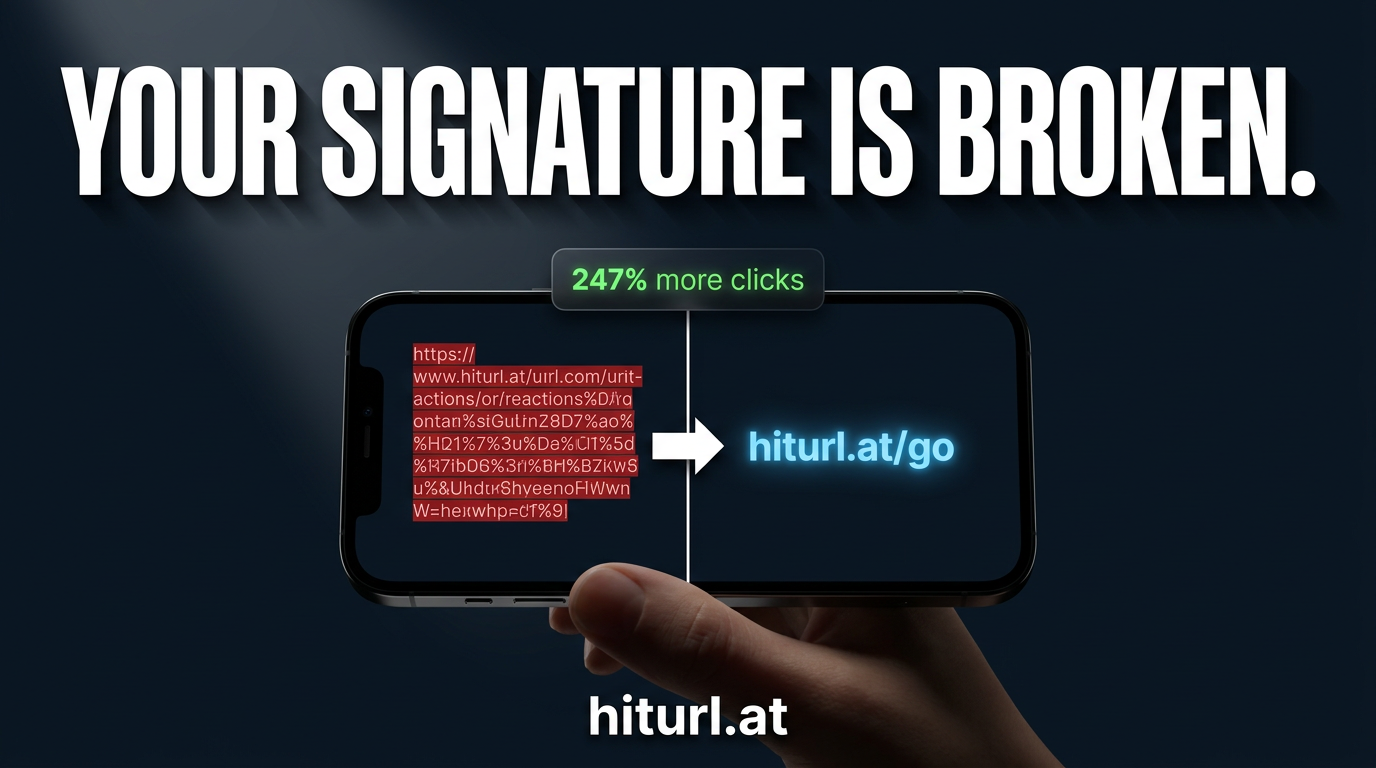
Your email signature is sending people somewhere every single day, and most professionals have no idea how many clicks it gets. Adding a short link to your email signature takes two minutes and turns a static block of text into a trackable, flexible marketing asset. Add a QR code alongside it, and mobile readers can scan without typing a single character.
This guide walks you through the exact steps for Gmail, Outlook, and Apple Mail, introduces The Active Signature framework, and shows you how to update your destination URL without touching every email client you use.
Why Your Current Email Signature Link Is Probably Failing You
Most email signatures include a raw URL or a hyperlinked website address. That works, but it tells you nothing. You cannot see how many people clicked it, where they came from, or what device they used. You also cannot change the destination without logging into every email client and editing manually.
A short link solves all three problems at once. It tracks every click, it looks cleaner in plain-text email fallbacks, and because the short link itself stays the same, you can point it to a new destination anytime without touching your signature again.
A short link in your email signature is not a cosmetic choice. It is a live data feed. Every send becomes a passive click-tracking event you can analyze without any extra setup.
If you use email for outreach, client communication, or job searching, you are leaving measurable data on the table every day you skip this step.
What Is The Active Signature Framework?
The Active Signature framework is a two-element approach to email signature links: one primary CTA short link for desktop readers, and one QR code for mobile readers who prefer to scan. Together, they cover every reading context without cluttering your signature.
Here is how the framework breaks down:
- Element 1: The primary short link. A branded, trackable short URL that replaces your long destination link. This is what desktop readers click.
- Element 2: The QR code image. A small, scannable code embedded as an image in your signature. Mobile readers in meetings, on phones, or reading a printed email can scan it without typing.
The key insight is that both elements point to the same short link destination. When you update that destination, both the clickable link and the QR code stay current automatically, because the QR code encodes the short URL, not the final page.
When your QR code encodes a short link rather than a final URL, you can change where it sends people at any time. Print it, embed it, share it. The destination stays yours to control.
This is the difference between a static QR code and a dynamic one. A dynamic QR code, which is one where the destination URL can be updated after creation without generating a new code image, is what makes The Active Signature framework work long-term. You can learn more about how dynamic codes work in this guide to QR codes for business cards, which covers the same principle for printed materials.
Step 1: Create Your Short Link
Before you touch your email client, you need a short link worth putting in your signature. Here is the process:
- Decide on the destination. This could be your website homepage, a booking page, a portfolio, a LinkedIn profile, or a link-in-bio page that houses multiple links in one place.
- Go to HitURL's link shortener and paste your destination URL.
- Set a custom alias so the link reflects your name or brand. For example: hiturl.at/yourname or hiturl.at/book-a-call.
- Save the short link and copy it.
A custom alias matters here. A random string of characters looks accidental. A clean alias looks intentional and builds trust with recipients who hover over links before clicking.
If you want to track where clicks originate, add UTM parameters to your destination URL before shortening it. This lets you filter signature clicks in your analytics separately from other traffic sources. The full approach is covered in this article on tracking link clicks with UTM parameters.
Step 2: Generate Your QR Code
With your short link ready, generating the QR code takes under a minute.
- Go to HitURL's QR code generator.
- Paste your short link as the QR code destination, not the original long URL.
- Customize the style if you want it to match your brand colors.
- Download the QR code as a PNG file at a minimum of 300px wide. This keeps it sharp when rendered in email clients at smaller sizes.
Save this file somewhere accessible. You will upload it as an image when editing your signature in each email client.
Always generate your QR code from the short link, not the final destination URL. This gives you the ability to update the destination later without creating a new code or editing any signature that already contains it.
Step 3: Add the Short Link and QR Code to Your Email Signature
The process varies slightly by email client. Here are the steps for the three most common platforms.
Gmail
Google provides official instructions for editing your Gmail signature in their Gmail signature settings guide. The key steps for adding your link and QR code are:
- Open Gmail, go to Settings (the gear icon), then "See all settings."
- Scroll to the Signature section and open your existing signature or create a new one.
- Highlight the text you want to hyperlink (your short link URL or a CTA phrase like "Book a call"), then click the link icon in the formatting toolbar and paste your short link.
- To add the QR code, click the image icon in the toolbar and upload your PNG file.
- Resize the image to roughly 80x80 pixels so it sits cleanly alongside your contact details.
- Save your changes.
Outlook (Desktop)
- Go to File > Options > Mail > Signatures.
- Select or create a signature.
- Highlight your link text and click the hyperlink icon to add your short link URL.
- Use Insert > Pictures to upload your QR code image.
- Resize to match your signature layout and save.
Apple Mail
- Open Mail, go to Preferences > Signatures.
- Select your account and click the plus button to add or edit a signature.
- Type your CTA text, select it, then go to Edit > Add Link and paste your short link.
- Drag your QR code PNG directly into the signature editor.
- Resize as needed and close Preferences.
One note across all three platforms: some email clients strip images or block them by default. This is why the clickable short link is the primary element and the QR code is a bonus for mobile readers, not a replacement.
Start shortening links for free at hiturl.at. No credit card needed.
How to Update Your Destination Without Re-Editing Every Signature
This is where the short link approach pays off most. You have your short link embedded across Gmail, Outlook, Apple Mail, and maybe a LinkedIn profile or business card. Your booking page changes. Your offer changes. Your website migrates to a new URL.
With a raw long link, you re-edit every signature manually, across every device and client. With a short link, you log into HitURL, change the destination URL of that one short link, and every place it lives updates instantly. The link in your signature still reads the same. The QR code still shows the same code. But now they send people somewhere new.
This is the single biggest practical advantage of using a URL shortener for email marketing and outreach. The short link is the stable layer between your communications and your constantly changing digital presence.
Does a Short Link in Your Email Signature Actually Get Clicked?
Yes, and more than most people expect. According to HubSpot marketing research, email signatures generate consistent engagement, particularly in one-to-one professional emails where the recipient reads every line. Cold outreach emails, client updates, and job application emails all benefit from a well-placed signature link because the recipient has already read your message and is primed to take action.
The QR code element adds a second engagement path for anyone reading on a phone or tablet. Instead of tapping a small hyperlink, they scan the code with their camera and land on your page without friction.
A professional email signature with a short link and QR code serves two audiences simultaneously: desktop readers who click, and mobile readers who scan. Both paths lead to the same destination, and both clicks are tracked.
If you use LinkedIn alongside your email outreach, pairing your signature short link with a clean LinkedIn short link creates a consistent branded presence across both channels.
Common Mistakes to Avoid
- Using the raw destination URL. Long URLs break in plain-text email and give you no tracking data.
- Generating a QR code from the long URL. If the URL ever changes, the code breaks. Always encode the short link.
- Making the QR code too small. Below 70px, most phone cameras struggle to read it. Keep it between 80 and 120px in the signature.
- Skipping the custom alias. A generic random string looks like a phishing link to cautious recipients. A named alias builds confidence.
- Putting the QR code before the link. Desktop readers see images as decorative until proven otherwise. Lead with the clickable text link, then the QR code below it.
FAQ: Short Links and QR Codes in Email Signatures
Is it safe to put a short link in an email signature?
Yes. Short links are standard in professional email. Using a custom alias (for example, hiturl.at/yourname) makes the link transparent and trustworthy. Recipients can see where it leads before clicking.
Will a QR code image show up in every email client?
Not always. Some clients block images by default. This is why the clickable short link is the primary CTA and the QR code is a supplementary option for mobile readers. If the image is blocked, the link still works.
Can I change where my email signature link goes without editing the signature?
Yes, if you use a short link. Log into your link management platform, update the destination URL for that short link, and every instance of that link updates automatically, including any QR codes generated from it.
How do I track how many people click my email signature link?
Your link management platform shows click counts, device types, and geographic data for every short link. If you add UTM parameters to the destination URL before shortening, you can also track signature clicks separately in Google Analytics.
What size should the QR code image be in an email signature?
Between 80 and 120 pixels wide is the practical range for email signatures. Large enough to scan reliably on a phone camera, small enough not to dominate the signature layout. Download the original file at 300px or larger so it stays sharp when scaled down.
Your email signature goes out on every email you send. Making it trackable and scannable is a one-time setup that pays off on every message after. Start shortening links for free at hiturl.at. No credit card needed.