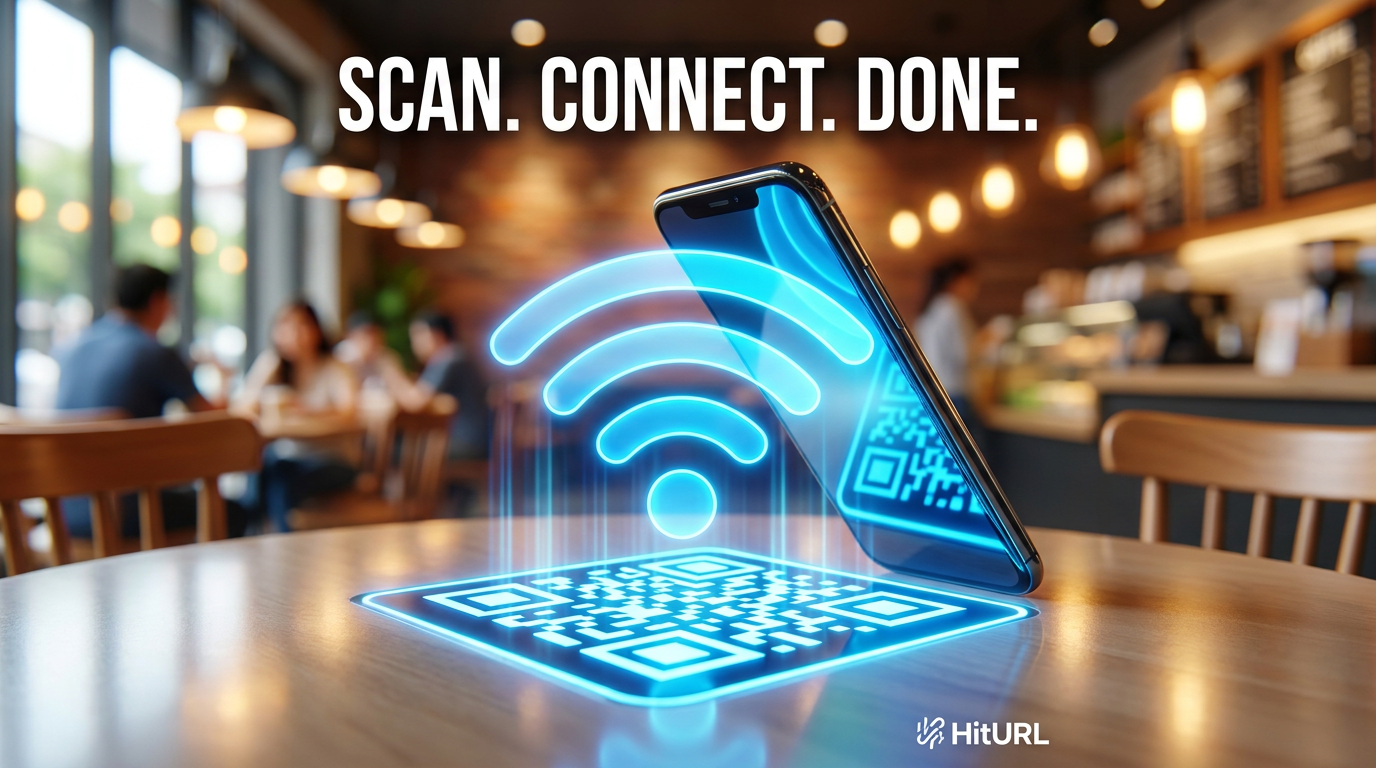


You printed 500 conference badges and forgot to add the feedback survey link. Now you are reading out a 60-character URL on stage while attendees stare at their phones. A QR code for your Google Form would have fixed that problem before it started.
This guide walks you through exactly how to generate a QR code for a Google Form or any survey link, style it for print, and distribute it the right way. Whether you are an event organizer, educator, or researcher, you will have a scannable form ready in under five minutes.
Why a QR Code for Your Google Form Actually Gets More Responses
Typing a URL is friction. Scanning a code is not. That difference matters more than most people expect.
According to QR code usage research, mobile QR code scanner usage in the US surpassed 89 million users in 2022, up from 76 million in 2020. People scan. They do not type long form links.
A QR code on a printed handout, badge, or poster removes the single biggest barrier to form completion: the effort of typing a URL. If a respondent has to type, most of them will not bother.
For Google Forms specifically, this is critical. The default share link from Google is long, ugly, and full of random characters. Even a shortened version is easier to mistype. A QR code sidesteps all of that.
Step 1: Get Your Google Form Share Link
Open your form in Google Forms and click the Send button in the top right corner. In the Send form panel, select the link icon. You will see your full form URL. Check the "Shorten URL" box if you want Google's built-in shortener, but there is a better option coming in the next step.
Copy the full link. It will look something like https://docs.google.com/forms/d/e/[long-id]/viewform. That is the URL you will feed into your QR code generator.
Step 2: Shorten the Link Before You Generate the QR Code
This step is optional but important. Here is why it matters.
A QR code encodes data as a grid of black and white squares. The more characters in the URL, the denser and more complex that grid becomes. Dense QR codes are harder to scan, especially when printed small on a badge or poster.
Shortening your Google Form URL before generating a QR code produces a cleaner, less dense code that scans faster and prints more reliably at small sizes. It also gives you the ability to update the destination without reprinting.
You can shorten your Google Form link for free using HitURL's link shortener. Paste your Google Form URL, add a custom alias if you want something memorable like hiturl.at/feedback2025, and your short link is ready in seconds.
Start shortening links for free at hiturl.at. No credit card needed.
Step 3: Generate the QR Code for Your Survey Link
Now that you have a clean short link, generating the QR code takes under a minute.
- Go to HitURL's QR code generator.
- Paste your shortened Google Form URL into the input field.
- Choose your QR code style: color, logo, shape, and frame options are all available.
- Download the code as a PNG or SVG file. Use SVG for print to keep it sharp at any size.
A dynamic QR code, one where the destination URL can be changed after printing, is what you want here. If your form link ever changes or you want to swap the survey for a new one next year, a dynamic code lets you update the destination without generating a new image. HitURL creates dynamic branded QR codes by default. You can learn more about how to create a free dynamic branded QR code if you want to go deeper on customization.
Does a QR Code for a Google Form Ever Expire?
This is one of the most common questions event organizers ask, and the answer depends on what type of code you generate.
Static QR codes encode the URL directly into the code image. They do not expire, but they also cannot be updated. If the form link breaks or changes, the code is useless and you need to reprint. Dynamic QR codes store a redirect URL. The code itself stays the same; you control where it points. Read the full breakdown in this article on whether QR codes expire before you commit to printing at scale.
For any printed material, including conference badges, classroom posters, and event signage, always use a dynamic QR code. The cost of reprinting thousands of handouts because a link changed is far higher than the two minutes it takes to set up a dynamic code.
The Form Distribution Matrix: Choosing the Right Format for Each Use Case
Not every survey needs to be distributed the same way. The Form Distribution Matrix is a simple framework that matches your distribution channel to the right format based on your audience and environment.
| Use Case | Best Format | QR Code Placement | Notes |
|---|---|---|---|
| Conference feedback | Badge insert or table tent | Bottom of badge, center of table tent | Include a short call to action above the code |
| Classroom poll or quiz | Printed worksheet or poster | Top right corner of handout | Add instructions for students unfamiliar with scanning |
| Event check-in | A4 or A3 printed sign at entrance | Center of sign, minimum 5cm x 5cm | Test scan distance before printing final version |
| Research participant recruitment | Flyer or poster in public space | Bottom third of poster | Include typed short link below the QR code as a fallback |
| Post-purchase feedback | Receipt, packaging insert, or sticker | Bottom of receipt or back of insert | Keep the QR code at least 1cm from any edge |
The matrix also applies to digital placements. Email signatures, social media posts, and presentation slides all benefit from a QR code when your audience is likely to be viewing from a second device. For social media use cases, check the guide on URL shortener best practices for social media for additional context.
Design Tips for Printing QR Codes on Badges, Posters, and Signage
A QR code that looks great on screen can fail completely in print if you ignore a few basics.
- Minimum size: Print no smaller than 2.5cm x 2.5cm (roughly 1 inch square) for scanning at arm's length. For signage meant to be scanned from 1 to 2 meters away, go to at least 8cm x 8cm.
- Contrast: Dark code on a light background always. Avoid placing the QR code over a photograph or patterned background.
- Quiet zone: Leave a clear margin of at least 4 modules (the small squares) around the entire code. Cutting into this margin will break the scan.
- File format: Always export as SVG or high-resolution PNG (at least 300 DPI) for print. JPEG compression creates artifacts that confuse QR scanners.
- Call to action: Add a short line above or below the code: "Scan to complete the survey" or "Give us feedback." People scan more when they know why.
For a deeper look at QR codes in printed materials, the article on QR codes in print marketing covers placement, sizing, and testing in detail. And if you are adding a QR code to a business card for a contact form or intake survey, this QR code business card guide has specific sizing and layout advice.
Does This Work for Typeform and SurveyMonkey Too?
Yes, and the process is identical.
Every online survey tool, including Typeform, SurveyMonkey, Tally, Microsoft Forms, and Jotform, generates a shareable URL. That URL is all you need. Copy the share link from your survey platform, paste it into HitURL to create a short link, then generate your QR code from that short link.
The QR code process is platform-agnostic. Whether your form lives in Google Forms, Typeform, or SurveyMonkey, the steps are the same: copy the share URL, shorten it, generate the code, and print. The survey tool does not change the workflow.
One advantage of using HitURL as the middle layer is that your QR code stays consistent across campaigns. If you switch from Google Forms to Typeform mid-project, you update the destination URL in HitURL and your printed QR codes still work. No reprinting required.
FAQ: QR Codes for Google Forms and Surveys
Can I generate a QR code directly in Google Forms?
Google Forms does not have a built-in QR code generator. You need to copy your form's share link and use a separate tool to generate the code. HitURL lets you shorten the link and generate the QR code in the same workflow.
What is the difference between a static and dynamic QR code for a survey?
A static QR code encodes the URL permanently. A dynamic QR code stores a redirect, so you can update the destination URL without changing the printed code. For any survey that might be updated or reused, dynamic is the right choice.
How small can I print a QR code for a conference badge?
The minimum recommended size for a badge QR code is 2.5cm x 2.5cm. Anything smaller risks scan failures, especially in low light or if the badge moves while someone tries to scan it.
Do I need an app to scan a QR code for a Google Form?
No. Modern iPhones (iOS 11 and above) and most Android devices (Android 9 and above) can scan QR codes using the native camera app. No third-party scanner app is required.
What should I put below the QR code to increase scan rates?
Always include a short call to action such as "Scan to give feedback" or "Take our 2-minute survey." Also add the shortened URL in plain text below the code as a fallback for anyone who has trouble scanning.