

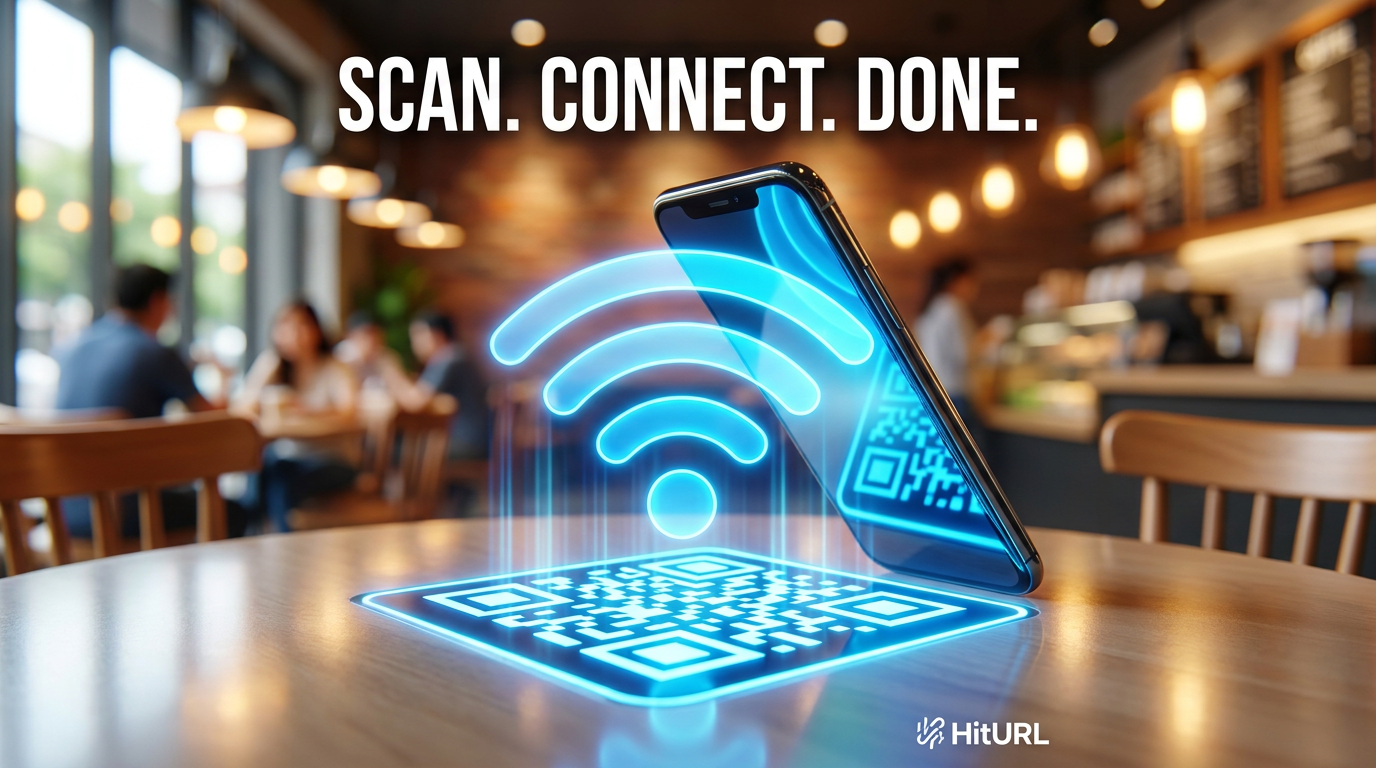
Typing a 20-character Wi-Fi password while a line of customers waits behind you is a frustrating experience nobody needs. A wifi qr code generator solves that problem completely. Scan the code, connect to the network, done. No typing, no squinting at a laminated card, no asking staff to repeat the password three times.
This guide shows you exactly how Wi-Fi QR codes work, how to generate one for free, and how local businesses, hotels, and offices are using them to improve the guest experience right now.
What Is a Wi-Fi QR Code and How Does It Work?
A Wi-Fi QR code encodes a structured text string that tells a smartphone everything it needs to join a wireless network: the network name (SSID), the password, and the security protocol. When a device scans the code, the operating system reads that string and offers to connect automatically, with no manual input required.
The format of the encoded string looks like this:
WIFI:T:WPA;S:YourNetworkName;P:YourPassword;H:false;;
The fields break down as follows:
- T: Security type (WPA, WEP, or nopass for open networks)
- S: The SSID, which is your network name
- P: The network password
- H: Whether the network is hidden (true or false)
According to the QR code Wi-Fi standard documented on Wikipedia, this format has been supported natively on Android since version 10 and on iOS since version 11. That covers the overwhelming majority of smartphones in active use today.
A Wi-Fi QR code encodes your network credentials into a single scannable image. When a smartphone camera reads it, the device offers to join the network instantly, with no password entry required from the user.
Why Businesses Are Replacing Password Signs With QR Codes
The old approach was a framed card on the table or a printed sticker on the wall. Guests would either miss it, photograph it, or ask staff anyway. That friction adds up across hundreds of daily interactions.
Restaurants, cafes, hotels, and co-working spaces have moved to Wi-Fi QR codes for three clear reasons:
- Speed. A scan takes under three seconds. Typing a password takes 15 to 30 seconds, and longer if the password is complex.
- Accuracy. There are no typos. The code either works or it does not, and it rarely does not.
- Professionalism. A branded QR code on a table card or menu looks intentional. A handwritten password on a chalkboard does not.
According to a 2023 survey by Statista, over 89 million smartphone users in the United States alone scanned a QR code, a number that has grown steadily since 2020. Wi-Fi access is one of the most common real-world use cases driving that adoption.
Replacing a printed password card with a Wi-Fi QR code removes a point of friction that affects every single guest who walks through your door. That is not a minor improvement; it is a compounding one.
How to Generate a Wi-Fi QR Code for Free
You do not need a developer or expensive software to create a functional Wi-Fi QR code. Here is a step-by-step approach you can complete in minutes.
Step 1: Gather Your Network Details
Before you open any generator, write down three things: your SSID (the exact network name, including capitalization and spaces), your password, and your security type. Most modern routers use WPA2. If you are unsure, check your router admin page or the label on the device itself.
Step 2: Choose a QR Code Generator
Several free tools support the Wi-Fi QR format. Look for one that lets you select "Wi-Fi" as the content type and input each field separately, rather than requiring you to manually format the string. This reduces errors significantly.
For a fully branded, dynamic code that you can update without reprinting, HitURL's QR code generator gives you control over design, color, and logo placement alongside the technical encoding. You can learn more about the full feature set in this guide on how to create free dynamic branded QR codes.
Step 3: Enter Your Credentials Carefully
Match your SSID and password exactly. A single wrong character breaks the code. If your password contains special characters like quotes, backslashes, or semicolons, confirm that your generator handles them correctly. Some tools escape these characters automatically; others do not.
Step 4: Test Before You Print
Scan the generated code with at least two devices before you commit it to print. Use one iOS device and one Android device if possible. Confirm the network connection completes successfully on both. This takes two minutes and saves you from deploying a broken code across every table in your venue.
Step 5: Export at High Resolution
Download your code as an SVG or PNG at a minimum of 1000 x 1000 pixels. This ensures the code stays sharp whether you print it at business card size or as a full table tent. For a deeper look at sizing and print specifications, read this article on using QR codes in print marketing.
Always test a Wi-Fi QR code on at least two different devices before printing it. A code that fails at scale, across dozens of printed materials, is harder to fix than one you catch during a two-minute pre-launch check.
Ready to build your first QR code? Start shortening links and generating codes for free at hiturl.at. No credit card needed.
What Makes a Dynamic Wi-Fi QR Code Better Than a Static One?
A static QR code is fixed. The data baked into it cannot change. If you update your Wi-Fi password, you must generate a new code and reprint every physical material that carries it.
A dynamic QR code, one where the destination or encoded data can be updated after the code is created and printed, solves this entirely. You print the code once. When your password changes, you update the data in your dashboard and the same printed code now connects users to the new credentials.
For businesses that rotate passwords for security reasons, or hotels that update guest network settings seasonally, this is a significant operational advantage. Dynamic codes also give you scan analytics, so you can see when and how often guests are connecting. This kind of long-term flexibility is one reason the question of whether QR codes expire matters more for static codes than dynamic ones.
How Do Hotels and Restaurants Use Wi-Fi QR Codes Effectively?
These two industries have the highest daily volume of guests needing network access, and they have developed reliable placement strategies worth copying.
Hotel Wi-Fi QR Codes
Hotels typically place Wi-Fi QR codes in three locations: on the in-room welcome card, on the back of the room door, and at the front desk. Some properties encode separate codes for different network tiers, one for a standard guest network and one for a premium high-speed option. Each code is clearly labeled so guests know what they are connecting to.
A best practice for hotels is to include the network name (SSID) as visible text next to the QR code. This allows guests who prefer to connect manually to do so, while the majority scan and move on.
Restaurant Wi-Fi QR Codes
Restaurants often bundle the Wi-Fi QR code with the table menu or a table tent card. This placement is natural because guests reach for the menu first, and the QR code is right there. Some venues combine the Wi-Fi code with a digital menu QR code on a single card, which keeps the table surface clean and reduces print costs. For more on that approach, see this article on QR codes for restaurant menus.
Placing a Wi-Fi QR code on a restaurant table card or hotel welcome insert is not just a convenience feature. It signals to guests that the business has thought about their experience before they even sit down.
Security Considerations You Should Not Skip
Sharing Wi-Fi credentials via QR code does not weaken your network security on its own. The same password that you would share verbally or on a printed card is encoded in the QR image. However, a few practices keep your network safer regardless of how you share access.
- Use a separate guest network. Keep your business-critical devices on a private SSID. The QR code should point to a guest network that is isolated from your internal infrastructure.
- Set a guest network expiry or bandwidth limit. Most business-grade routers support time-limited guest access or speed throttling. This prevents abuse without inconveniencing legitimate users.
- Rotate passwords periodically. If you use a dynamic QR code, rotating the password is low-effort. Update the credential in your dashboard and the printed code still works.
- Do not encode admin network credentials. This sounds obvious, but it is worth stating explicitly. The QR code is for guest access only.
Common Mistakes That Break Wi-Fi QR Codes
Most Wi-Fi QR code failures trace back to one of these four issues.
Incorrect Security Type
Setting the security type to WEP when your router uses WPA2 means the connection attempt will fail silently. Confirm your router's security setting before generating the code.
Unescaped Special Characters
Passwords containing characters like ", \, ;, or , can break the encoded string if your generator does not handle them. Test your code immediately after creation if your password includes any of these.
Printing Too Small
A Wi-Fi QR code printed smaller than 2 x 2 centimeters is difficult for a camera to read reliably. For table cards and wall signage, aim for a minimum of 4 x 4 centimeters.
Low Print Contrast
QR codes need a strong contrast between the dark modules and the light background. Light grey on white, or dark blue on black, are common design mistakes that reduce scan reliability. Stick to near-black on white or near-white for the background.
The One-Code-Per-Location Rule
If you manage multiple locations, each venue should have its own unique QR code pointing to its own network. This sounds straightforward, but it is easy to accidentally print one location's code across all venues when producing materials in bulk.
Label each file clearly with the location name and the date generated. Store them in a shared folder your whole team can access. If you use dynamic codes, a dashboard that organizes codes by location makes this even cleaner. Think of this as applying the One-Code-Per-Location Rule: one physical network, one code, one source of truth.
Frequently Asked Questions
Do Wi-Fi QR codes work on all smartphones?
Yes, on virtually all modern devices. Native Wi-Fi QR code scanning is supported on Android 10 and above and iOS 11 and above. Devices running older operating systems may need a third-party QR scanner app that supports the Wi-Fi format.
Is it safe to share my Wi-Fi password in a QR code?
It is as safe as sharing the password any other way, provided you follow two rules: always encode a guest network, never your primary or admin network, and use a strong password that you rotate periodically.
Can I generate a Wi-Fi QR code for free?
Yes. Several tools offer free Wi-Fi QR code generation, including HitURL's free tier. Static codes are always free. Dynamic codes with edit and analytics features are available on free and paid plans depending on the platform.
What happens if I change my Wi-Fi password after printing the QR code?
If you used a static code, the old code stops working and you need to generate and reprint a new one. If you used a dynamic code, you update the password in your dashboard and the printed code continues to work with the new credentials.
How big should a Wi-Fi QR code be when printed?
For reliable scanning, print your code at a minimum of 4 x 4 centimeters for close-range use like table cards. For wall signage scanned from a distance of one meter or more, 10 x 10 centimeters is a safer minimum size.
Start Generating Wi-Fi QR Codes Today
A Wi-Fi QR code is one of the smallest upgrades a business can make, and one of the most immediately noticeable for guests. The technical setup takes under ten minutes. The improvement to the guest experience is permanent.
Build your first code, test it on two devices, and put it somewhere guests will see it the moment they sit down. That is the entire workflow.
Start shortening links for free at hiturl.at. No credit card needed.