

One Link, Three Destinations, Zero Confusion
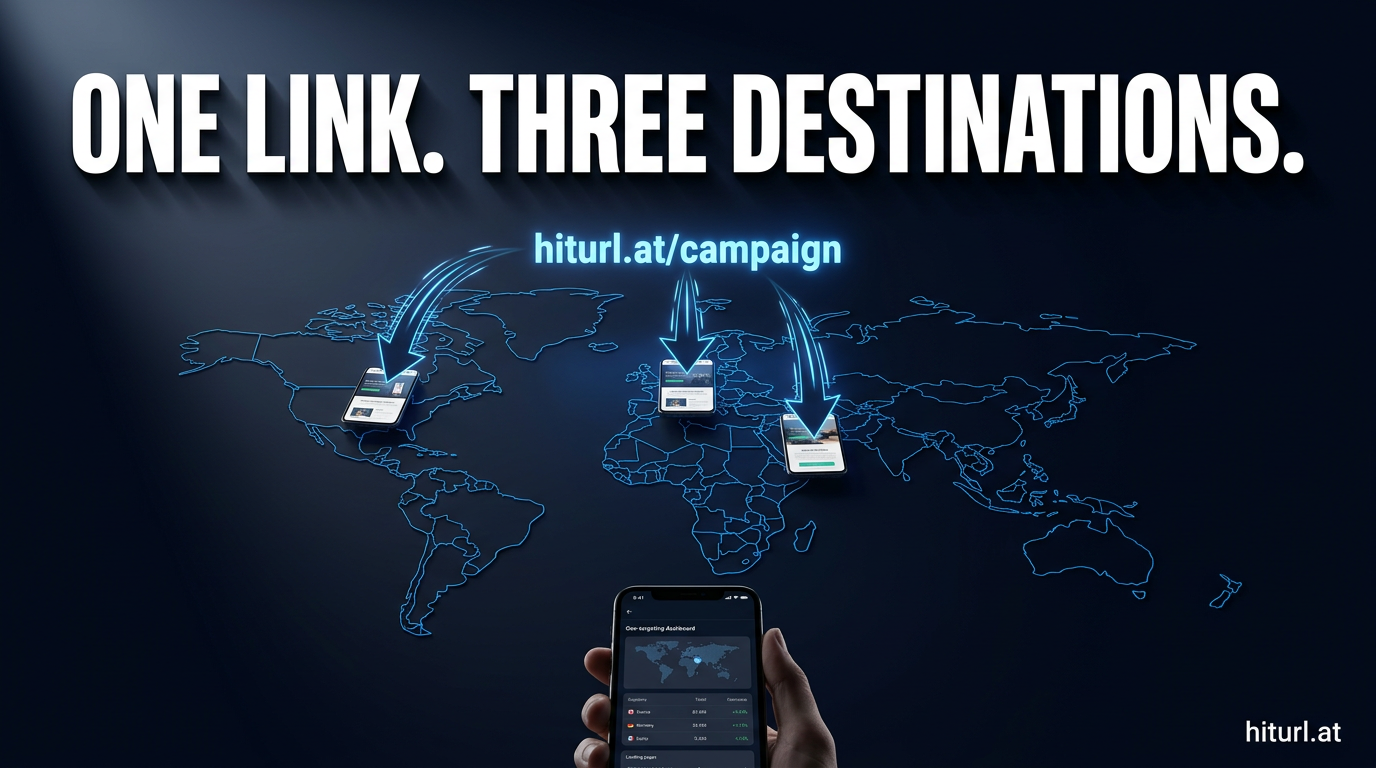
You have one link to share. Your audience opens it on an iPhone, a Samsung Galaxy, and a MacBook. If all three land on the same page, at least two of them are getting the wrong experience. Link routing by device solves this by detecting the user's device type or operating system at the moment of the click and redirecting them to the most relevant destination automatically.
This guide shows you exactly how to set up device-based link routing for a real campaign scenario: iOS users go to the Apple App Store, Android users go to Google Play, and desktop users land on your custom Next.js marketing page. You will keep your UTM data clean and your tracking intact the entire way.
What Is Link Routing by Device?
Link routing by device is the practice of using a single short URL that inspects the visitor's user-agent string and then redirects them to a different destination based on their device type or operating system. The redirect happens server-side in milliseconds, before the user sees anything.
The three most common routing targets for mobile marketers are:
- iOS (iPhone, iPad): Apple App Store product page
- Android: Google Play Store listing
- Desktop / other: Web landing page, press kit, or campaign microsite
Without this routing layer, you are forced to maintain separate links for each platform, which fragments your analytics, complicates your ad creative, and makes QR codes on printed materials nearly useless for half your audience.
A single device-routed link consolidates all traffic from print, social, and paid ads into one analytics view while delivering each visitor to the destination built for their platform. This is the minimum viable setup for any cross-platform app campaign.
Why Device-Based URL Redirects Matter for App Campaigns
According to Statista, iOS and Android together account for over 99% of the global mobile OS market. Sending either group to the wrong app store produces an immediate dead end. The user bounces, you lose the install, and your cost-per-install climbs for no reason.
Desktop users are a separate problem. They cannot install a mobile app directly from a store link, so landing them on a raw App Store URL produces a broken experience or an error page. A dedicated landing page that explains the app and offers a QR code to download it converts significantly better.
Device-based redirect links also simplify your creative process. You write one URL in your ad copy, one URL in your bio, one URL printed on packaging. Everything downstream is handled by the routing logic, not by your team scrambling to maintain three separate tracking links.
How to Set Up iOS, Android, and Desktop Routing in HitURL
HitURL's device targeting feature lets you define a separate destination URL for each device category inside a single short link. Here is the step-by-step setup for the app campaign scenario described above.
- Create a new short link. Log in to your HitURL dashboard and click Create Link. Paste your default destination URL — use your desktop landing page as the fallback. This is what any unrecognized device type will see.
- Open the Device Targeting panel. In the link settings, locate the Device Targeting section. You will see separate fields for iOS, Android, Windows, macOS, Linux, and a catch-all fallback.
- Set your iOS destination. Paste your Apple App Store URL here. For example:
https://apps.apple.com/app/your-app/id123456789. Apple's own Universal Links documentation explains how to structure deep links that open the app directly if it is already installed. - Set your Android destination. Paste your Google Play Store URL:
https://play.google.com/store/apps/details?id=com.yourapp. - Set your desktop destination. Paste the URL of your Next.js landing page or any web-based destination optimized for a full browser experience.
- Add your UTM parameters. Append UTM tags to each destination URL before saving. Use consistent values across all three so your campaign appears as a single source in Google Analytics, not three fragmented entries. If you need a refresher on building clean UTM stacks, the guide on tracking link clicks with UTM parameters covers the full setup.
- Save and copy your short link. HitURL generates one short URL that handles all three routing rules. Deploy it everywhere: social bios, ad copy, email footers, QR codes.
When you append UTM parameters to each device-specific destination URL before saving the short link, every click in your analytics tool appears under the same campaign. You get unified reporting without sacrificing the platform-specific routing your users need.
What Happens to Your UTM Data When a Redirect Fires?
This is the question most marketers miss until they check their analytics and find a mess. When a server-side redirect fires, the browser follows the new URL including any query parameters you appended to the destination. If you built your destination URLs correctly in step 6 above, the UTM data travels with the redirect.
The mistake to avoid is attaching UTM parameters only to the short link itself and assuming they pass through. They do not. The short link is the vehicle; the destination URL carries the cargo. Build your UTM-tagged destination URLs first, then paste them into the device routing fields.
You can also layer geo-targeting on top of device targeting for campaigns that need both. If you are routing UK iOS users to a different App Store region than US iOS users, check the guide on geo-targeting links by country for the combined setup.
The Single-Link Framework for Cross-Platform App Campaigns
Here is a repeatable framework for any app campaign. Call it The Platform Stack Method.
- Layer 1: The short link. One branded URL is the only thing your audience ever sees. It lives in your ad, your bio, your QR code.
- Layer 2: Device routing. The short link detects iOS, Android, or desktop and sends each visitor to the right destination silently.
- Layer 3: UTM-tagged destinations. Each destination URL carries UTM parameters so your analytics tool captures source, medium, campaign, and device-specific data cleanly.
- Layer 4: Retargeting pixels. Fire your Facebook or Google retargeting pixel on every click through the short link, regardless of which destination the user lands on. Anyone who clicked your link is now in your retargeting pool, even if they did not install the app.
The Platform Stack Method treats your short link as the single point of control for routing, tracking, and retargeting. Change any destination at any time without touching your ad creative, your printed QR codes, or your email campaigns.
See how HitURL tracks every click, fires your pixels, and generates QR codes — free at hiturl.at.
OS-Level Routing vs. Device-Type Routing: What Is the Difference?
Device-type routing separates traffic by category: mobile, tablet, and desktop. OS-level routing goes one step further and differentiates by operating system: iOS, Android, Windows, macOS, Linux, and others.
For app campaigns, OS-level routing is what you need. An Android tablet and an Android phone both run Android, so they should both go to Google Play. A Windows laptop and a macOS MacBook both count as desktop, so they both land on your web page. Routing by OS gives you the specificity without the overhead of managing a dozen separate rules.
For campaigns where the destination is purely web-based, device-type routing is often enough. You might send mobile users to a simplified checkout flow and desktop users to a full product page. The choice depends on what actually differs between the destinations.
Building Device-Routed Links Programmatically with the API
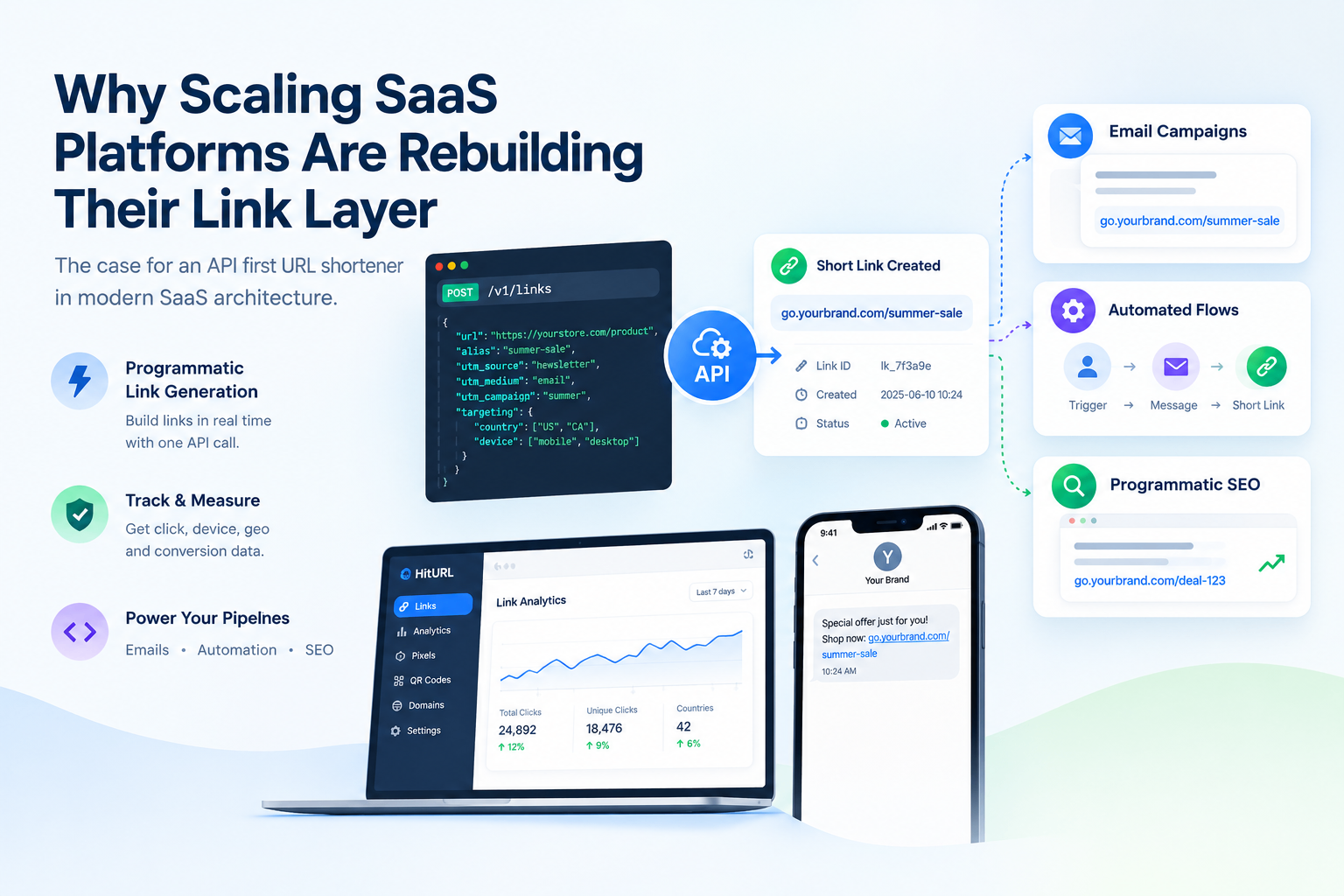
If you are managing hundreds of links across multiple app campaigns, setting up device routing manually in a dashboard is not efficient. HitURL's REST API lets you create and update device-targeted links programmatically.
A single POST request to the links endpoint can include device routing rules as part of the payload, so you can generate campaign links at scale from a script, a CI pipeline, or a CMS integration. The URL shortener API code examples guide has ready-to-use snippets in JavaScript, Python, and cURL that you can adapt for device-targeted link creation.
Marketers running more than 20 active campaigns should script their link creation through the API. Programmatic link generation eliminates copy-paste errors in destination URLs and ensures UTM parameters are applied consistently across every link in the campaign.
Common Mistakes in Device-Based Link Routing
Even a well-planned routing setup can break in predictable ways. Watch out for these:
- No fallback URL: If you only set iOS and Android rules without a desktop fallback, desktop visitors hit a blank or error page. Always set a fallback.
- UTM parameters on the short link instead of the destination: As covered above, UTM tags must live on the destination URL, not on the short link itself.
- Using the same destination for tablets and phones: iPads run iOS but behave more like desktop browsers. Test your routing rules against iPad user-agents specifically if your app has a tablet-optimized experience.
- Forgetting to update destinations after a rebrand: One of the biggest advantages of a short link is that you can change the destination without reprinting or re-running creative. Set a calendar reminder to audit your routing rules each quarter.
- Not testing before going live: Use a browser's developer tools to spoof user-agent strings for iOS, Android, and desktop before you deploy the link to a live campaign. A two-minute test prevents a week of bad data.
Ready to build your first device-routed campaign link? Start with the free link shortener at HitURL and explore the device targeting settings on your first link.
Frequently Asked Questions
How does link routing by device actually detect the user's OS?
The short link server reads the User-Agent header sent by the visitor's browser on every request. This header identifies the operating system and browser version. The routing engine matches the user-agent string against known patterns for iOS, Android, Windows, macOS, and other platforms, then issues a redirect to the matching destination URL.
Can I route iOS and Android users to different app store regions?
Yes. You can combine device targeting with geo-targeting to send a UK iPhone user to the UK App Store and a US iPhone user to the US App Store. Both rules apply to the same short link. The geo-targeting layer evaluates the visitor's location first, then the device rule narrows the destination further.
Do retargeting pixels still fire when device routing redirects happen?
Yes, if your retargeting pixel is attached to the short link itself rather than the destination page. When HitURL fires the pixel on click, it happens before the redirect, so every visitor is cookied regardless of which destination they land on. This is one of the key advantages of firing pixels at the link level rather than on the destination page.
What happens if a user is on a device that does not match any of my routing rules?
The fallback URL you set as the default destination handles any unrecognized device type. This includes Smart TVs, gaming consoles, and uncommon operating systems. Always set a sensible fallback, typically your main web landing page, to avoid sending unmatched visitors to an error state.
Is there a limit on how many device routing rules I can add to one link?
HitURL supports separate rules for iOS, Android, Windows, macOS, Linux, and a catch-all fallback within a single link. For most app campaign scenarios, three active rules (iOS, Android, and desktop fallback) are sufficient to cover virtually all of your traffic.